Support Sign up or sign in Sign up with email
Sign up with email
Use any email and make a password. It takes about 3 minutes. Follow the steps below.
You need: an email that you can open, and your birth date, time, and place.
Important: Steer will send you an email with a link. The link works for only 5 minutes.
Want an easier way? See Sign up with Google.
Make your account
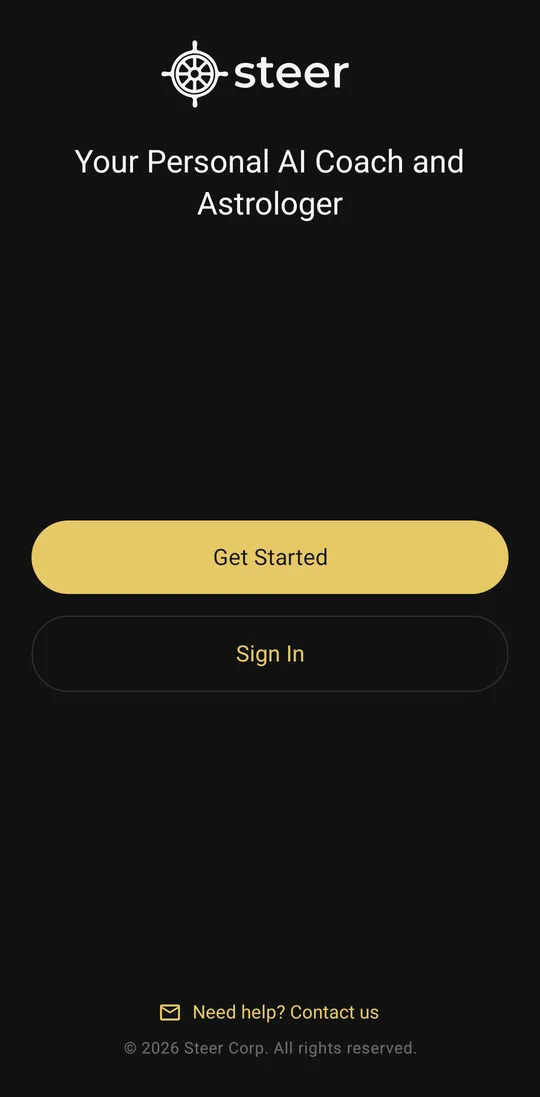
Open the app. Tap Get Started
Download Steer Astro from Google Play. Open the app.
Tap the yellow button Get Started.
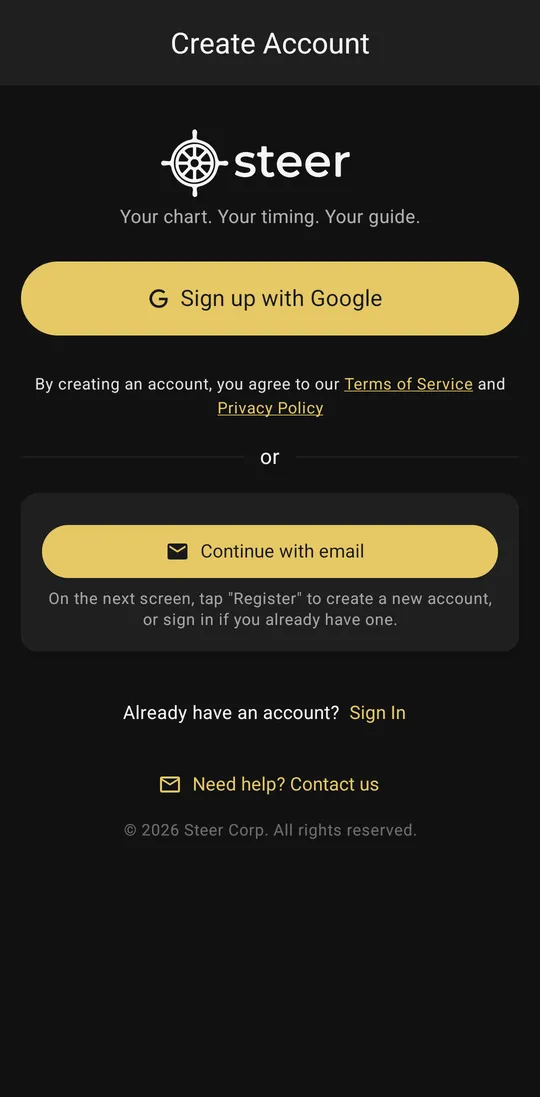
Tap Continue with email
Tap Continue with email.
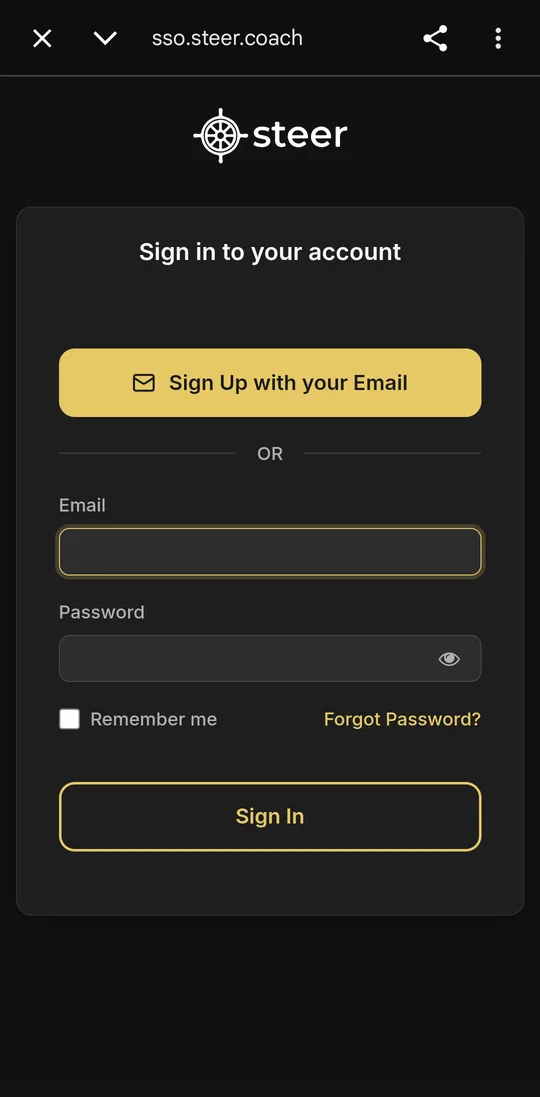
Tap Sign Up with your Email
A new page opens. At the top you see sso.steer.coach. This is Steer's safe sign-in page.
Tap the yellow button Sign Up with your Email.
Do not type in the Email and Password boxes on this page. They are for people who already have an account.
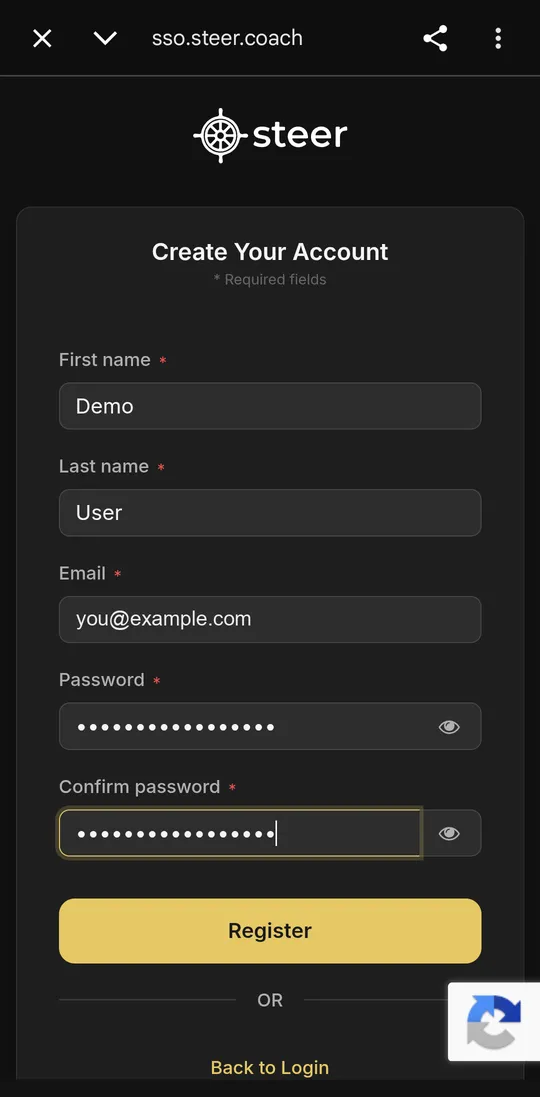
Fill in the form. Tap Register
- Type your first name and last name.
- Type your email.
- Make a password. It must have at least 8 letters or numbers.
- Type the same password again in Confirm password.
Tap Register.
Write down your email and password. You need them to sign in later.
Check your email
Steer sends you an email
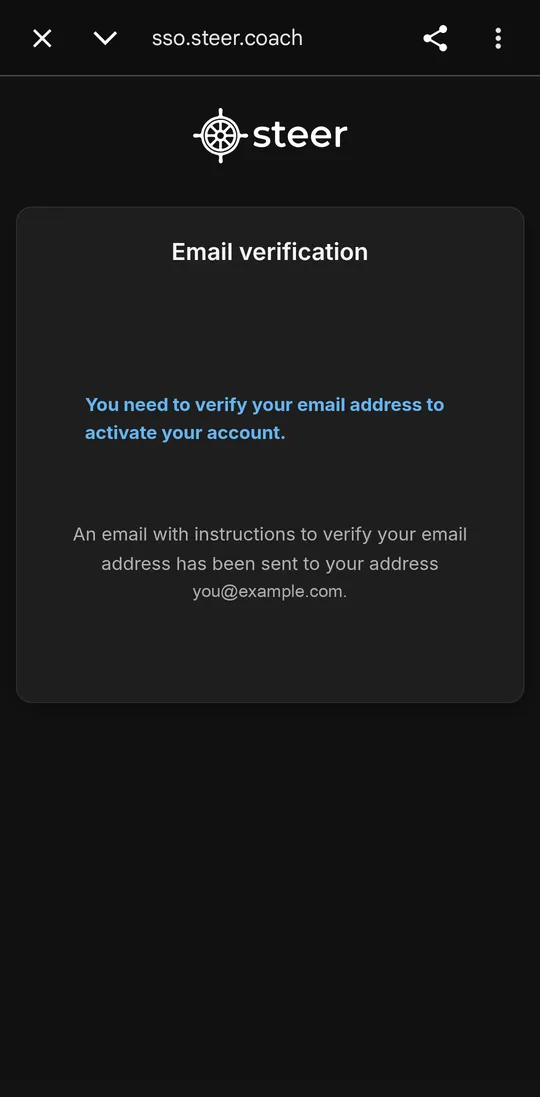
You see this screen: Email verification.
It means Steer has sent you an email. Now open your email app (for example, Gmail).
Open the email. Tap the link
Find the email from Steer. Its subject is Verify email.
Tap the blue link: Link to e-mail address verification.
Do this quickly. The link works for only 5 minutes. Cannot find the email? Look in the Spam or Promotions folder.
After you tap the link, the Steer app opens by itself. Your email is now checked.
Is your email not on this phone? No problem.
- Open your email on a computer or another phone.
- Find the email Verify email from Steer. Click the link within 5 minutes.
- Come back to the Steer app on your phone. Tap Sign In. Tap Continue with email.
- Type your email and password. Tap Sign In.
If you see “Action expired”
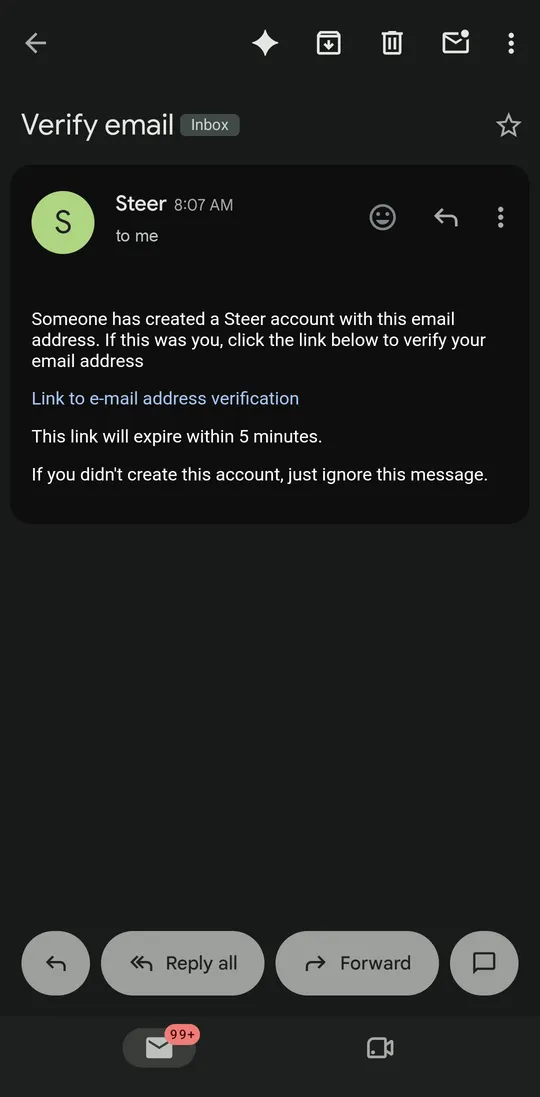
This means more than 5 minutes have passed. Do not worry. Your account is already made. Do not sign up again.
Do this:
- On that page, type your email and password. Tap Sign In.
- Steer sends you a new email. Open it and tap the link quickly.
Fill in your details
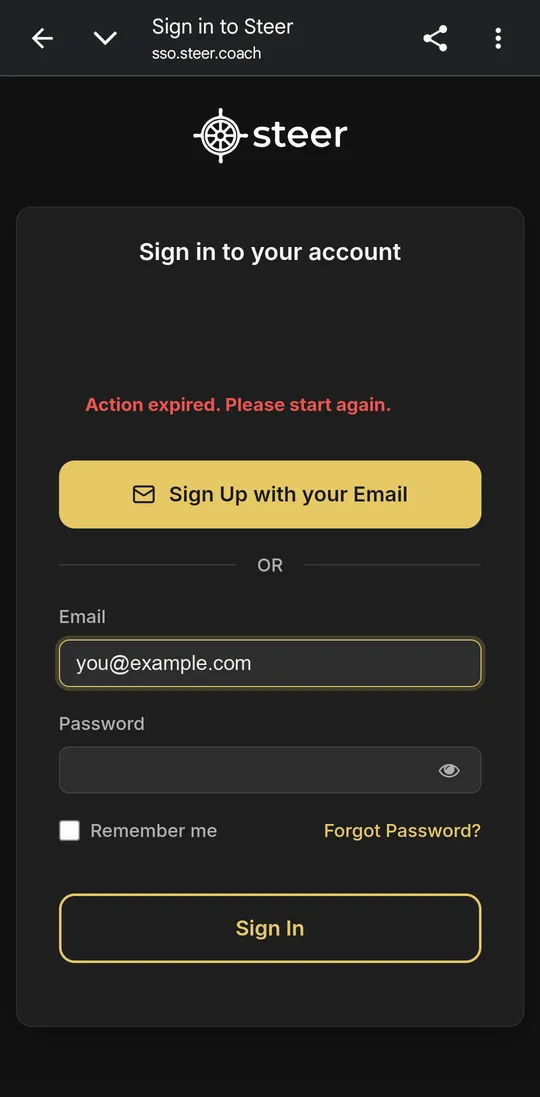
Steer needs your birth details to make your birth chart.
Add the city where you live now
Your name is already filled in. Choose Male, Female, or Other.
Tap Current Location. Type the name of the city where you live now. A list of cities opens. Tap your city in the list.
You must fill this box.
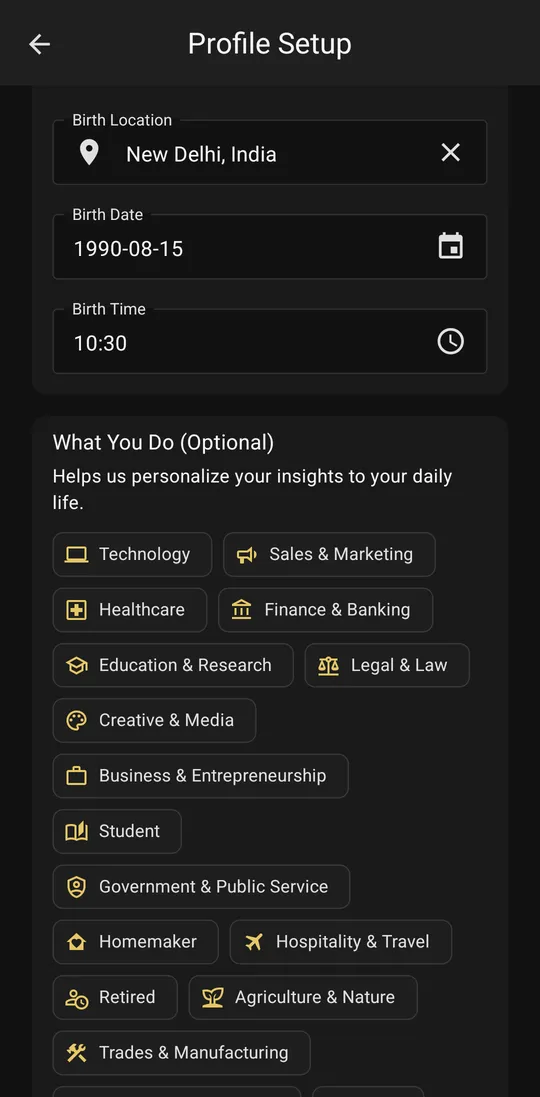
Add your birth place, date, and time
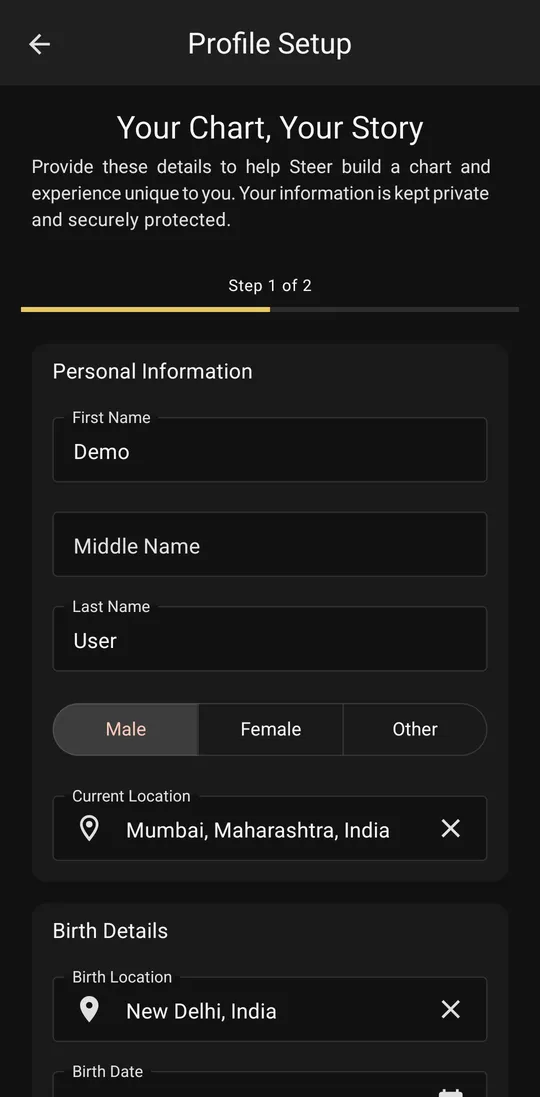
- Birth Location: type the city where you were born. Tap it in the list.
- Birth Date: tap it. A box opens with today's date. Scroll the year down to the year you were born. Then set the month and the day. Tap OK.
- Birth Time: tap it. A clock opens. Tap the hour. Then tap the minutes. Choose AM or PM. Tap OK.
Do not know your exact birth time? Put the closest time you know. You can change it later.
What You Do: tap the option that matches your work. For example, Student, Homemaker, Business & Entrepreneurship, or Retired. If none of them fit, tap Other. This helps Steer give advice for your daily life.
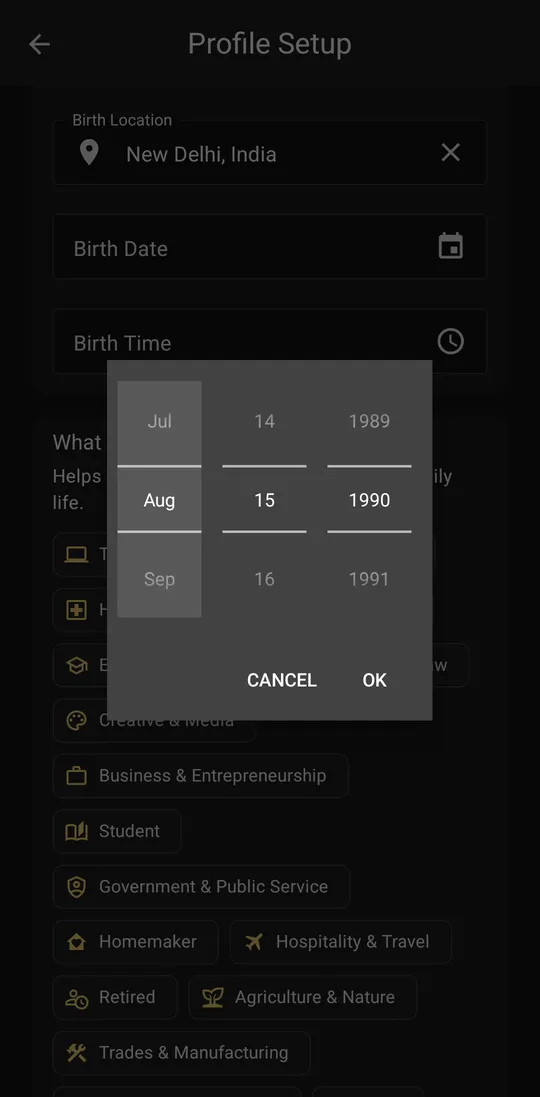
Tap Preview Summary
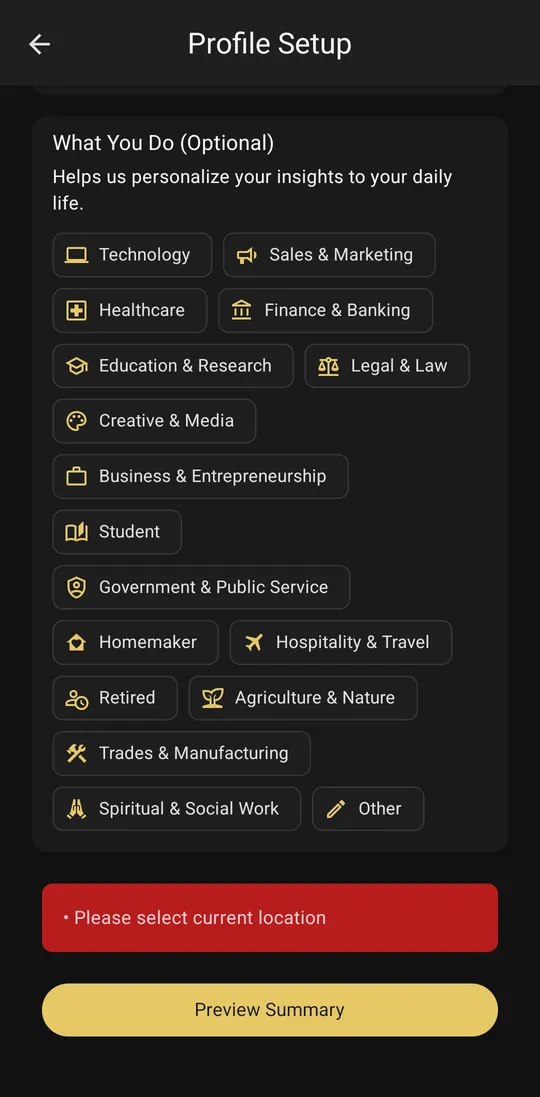
Scroll down. Tap the yellow button Preview Summary.
Do you see a red box, like Please select current location? It means something is missing. Scroll up and fill it.
Remember: type the city name, and then tap the city in the list. Only typing is not enough.
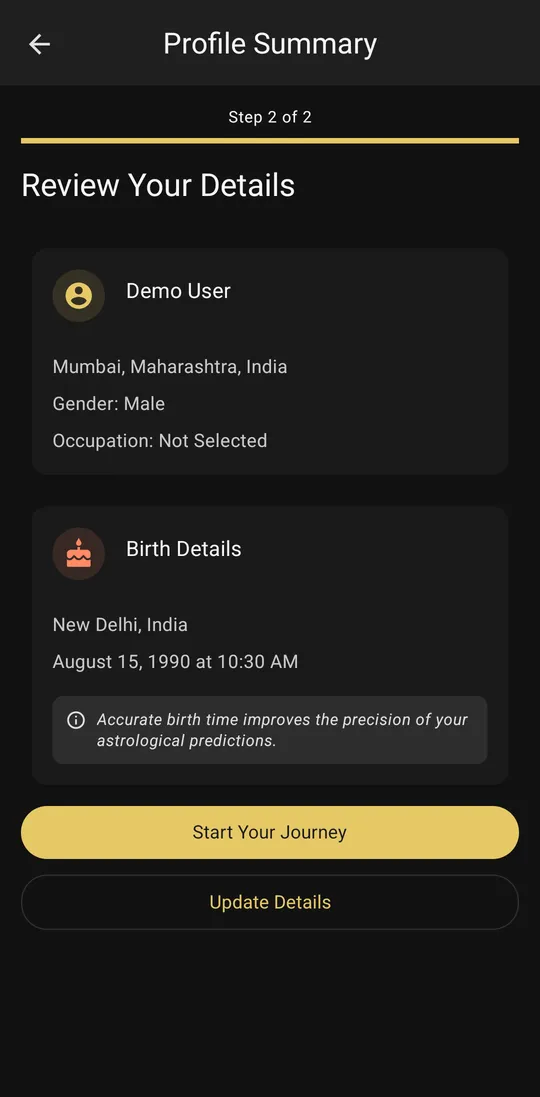
Check your details. Tap Start Your Journey
Check your birth date, birth time, and birth place.
Is something wrong? Tap Update Details to change it.
Is everything right? Tap Start Your Journey.
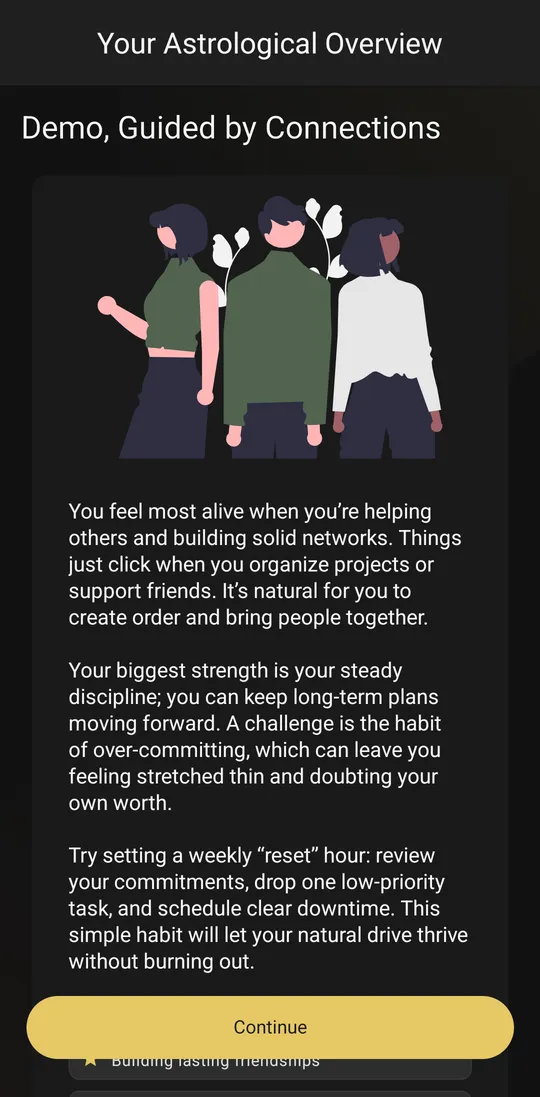
Read about yourself. Tap Continue
Steer shows a short reading about you, made from your birth chart.
Tap Continue at the bottom.
Choose your plan
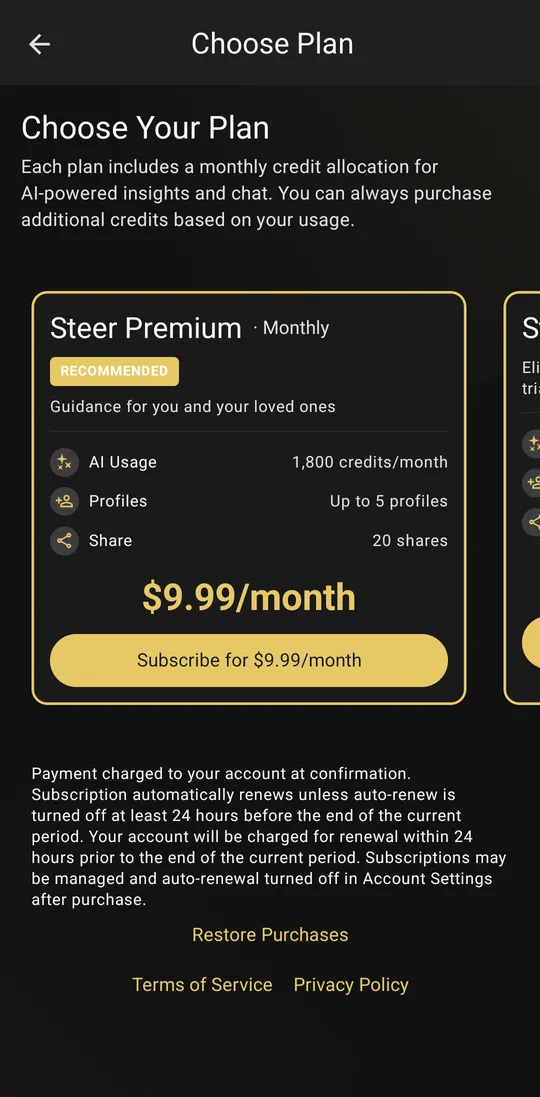
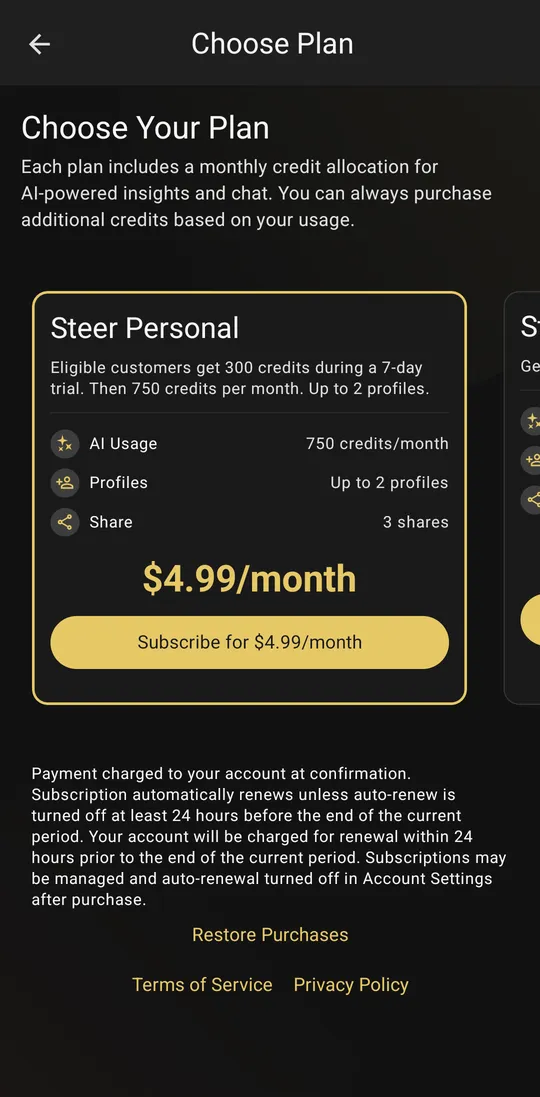
Choose your plan
Now you see the Steer plans.
Swipe left to see more plans.
Tap the button on the plan you want.
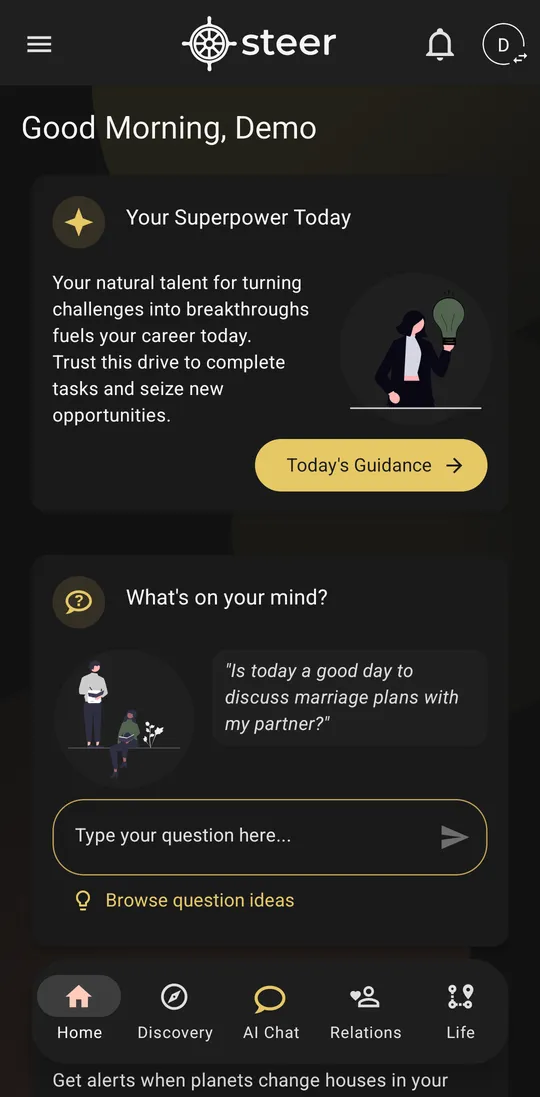
Done! You are in
You see your home screen. You can type any question in What's on your mind?
Next time, open the app and tap Sign In. See how to sign in.
Problems?
The link says “Action expired”
The link works for only 5 minutes. Sign in with your email and password. Steer sends you a new email. Open it and tap the link quickly. See the steps.
I did not get the email
Wait 1 or 2 minutes. Look in the Spam and Promotions folders. Check that you typed your email correctly. To get a new email: open the app, tap Sign In, tap Continue with email, and sign in.
It says my email already exists
You already made an account with this email. Do not sign up again. Sign in instead. Forgot your password? See how to reset it.
The page does not open, or it is blank
This page opens in the Chrome app. Check that Chrome is on your phone and turned on (Settings → Apps → Chrome). Update the Steer app from Google Play. Then try again. Or sign up with Google instead.
The Preview Summary button is not working
Scroll down and read the red box. It tells you what is missing. Most of the time it is Current Location or Birth Location. Type the city name. Then tap the city in the list.
I want to see all the plans
On the plans screen, swipe left to see more plans. Tap the button on the plan you want.
Still need help? Email us at support@steer.coach. Tell us the email you used. Add a screenshot of your screen. You can also tap Need help? Contact us inside the app.