Support Sign up or sign in Sign in
Sign in to Steer Astro
You already made a Steer account. Here is how to sign in again, on any Android phone.
Sign in the same way you signed up. Signed up with Google? Sign in with Google. Signed up with email? Sign in with email.
New to Steer? Make an account first.
Sign in
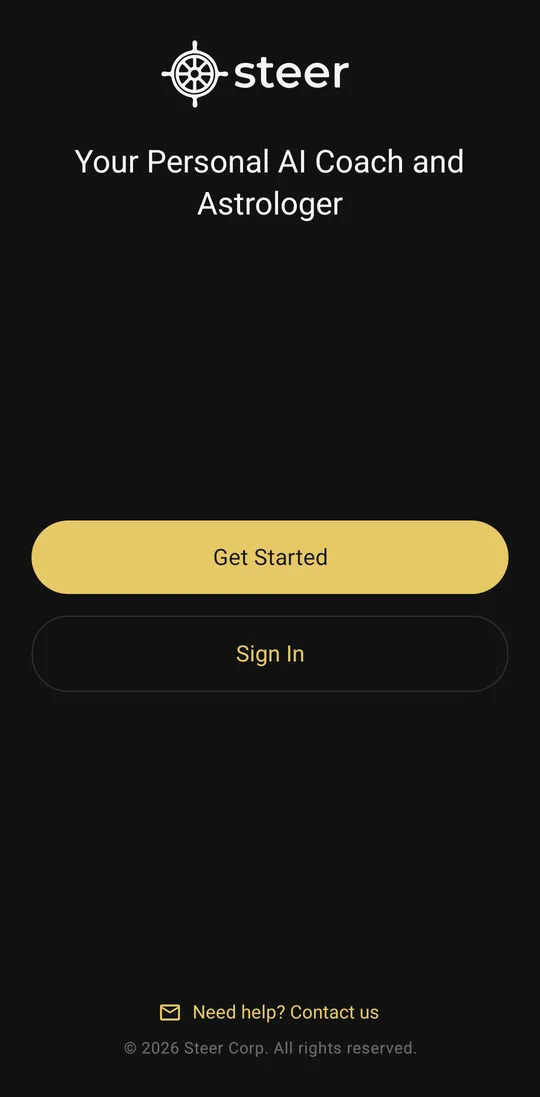
Open the app. Tap Sign In
Tap Sign In. Do not tap Get Started. That is for new users.
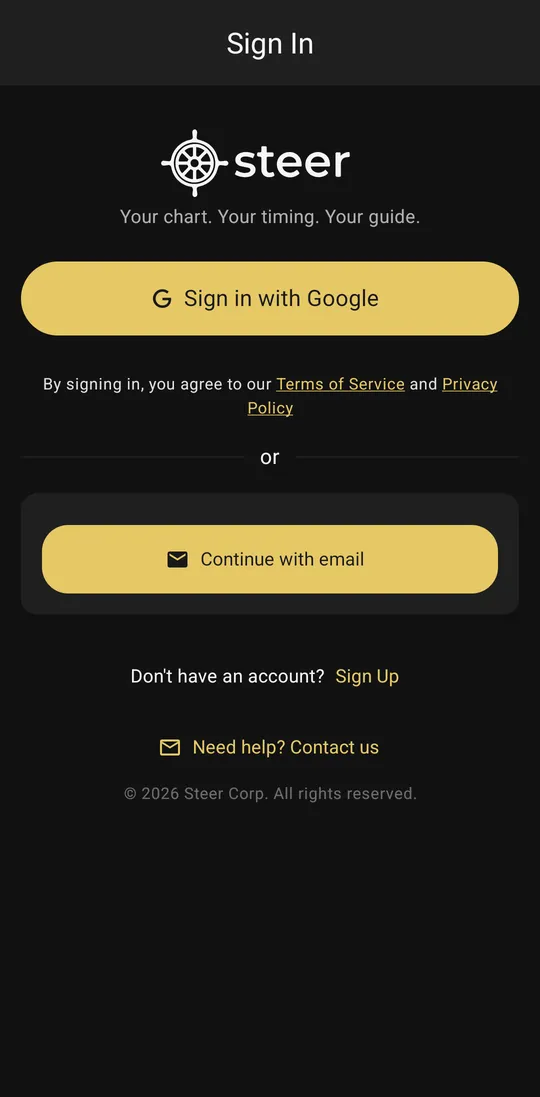
Choose Google or email
- Signed up with Google? Tap Sign in with Google. Go to Step 3a.
- Signed up with email? Tap Continue with email. Go to Step 3b.
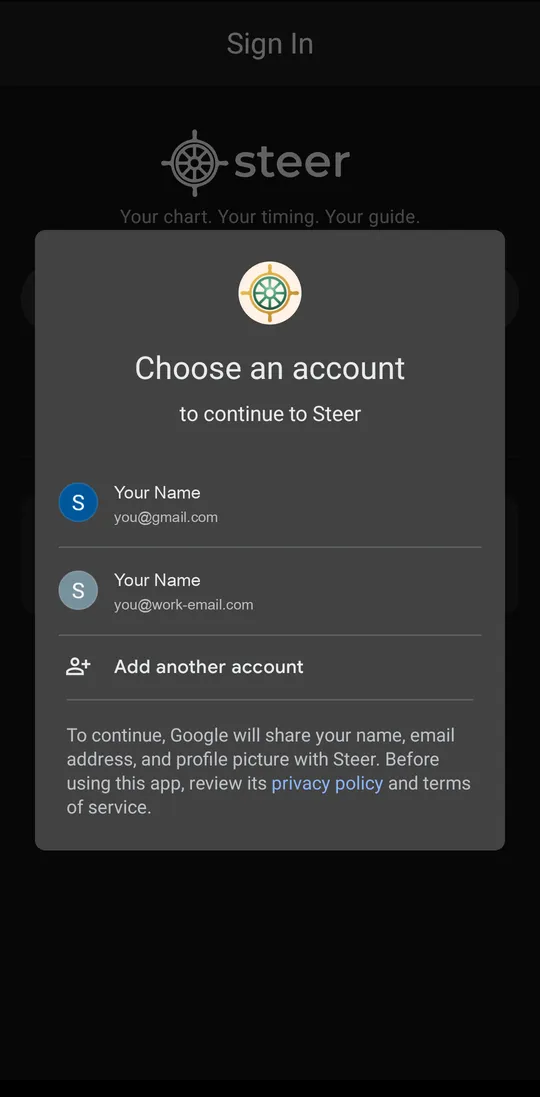
Google: tap your account
Tap the same Google account that you used before. You are now signed in.
Do you not see your Google account here? Then you must first sign in to your Google account on this phone. Tap Add another account. Type your Gmail address and password. Then your account shows in the list. Tap it.
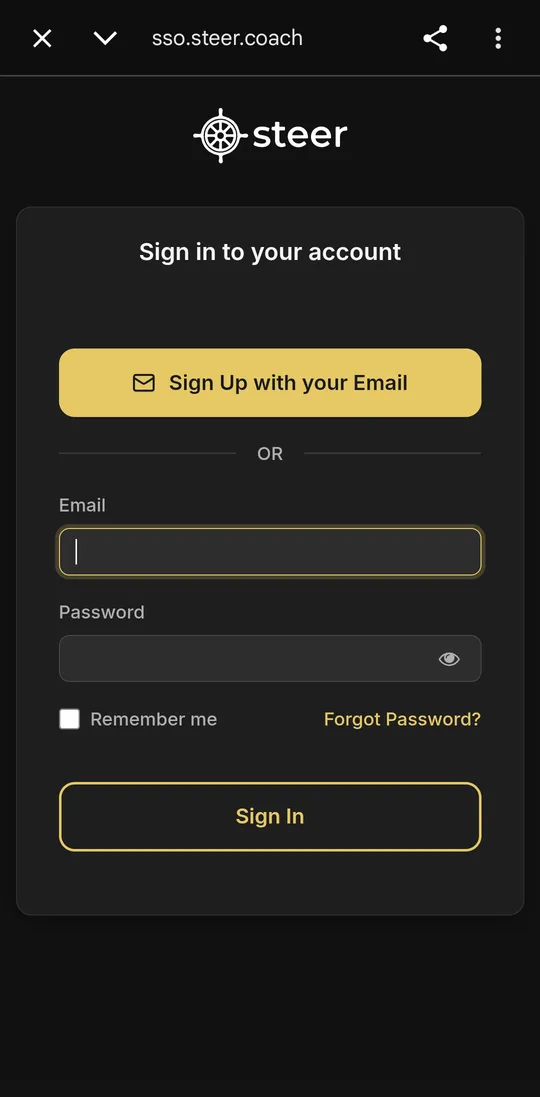
Email: type your email and password
Steer's sign-in page opens. Type your email and password. Tap Sign In.
Tick Remember me so that you stay signed in.
Do not tap Sign Up with your Email. That button is only for new users.
Done! You are in
You see your home screen. All your charts and chats are saved in your account. You will see them even on a new phone.
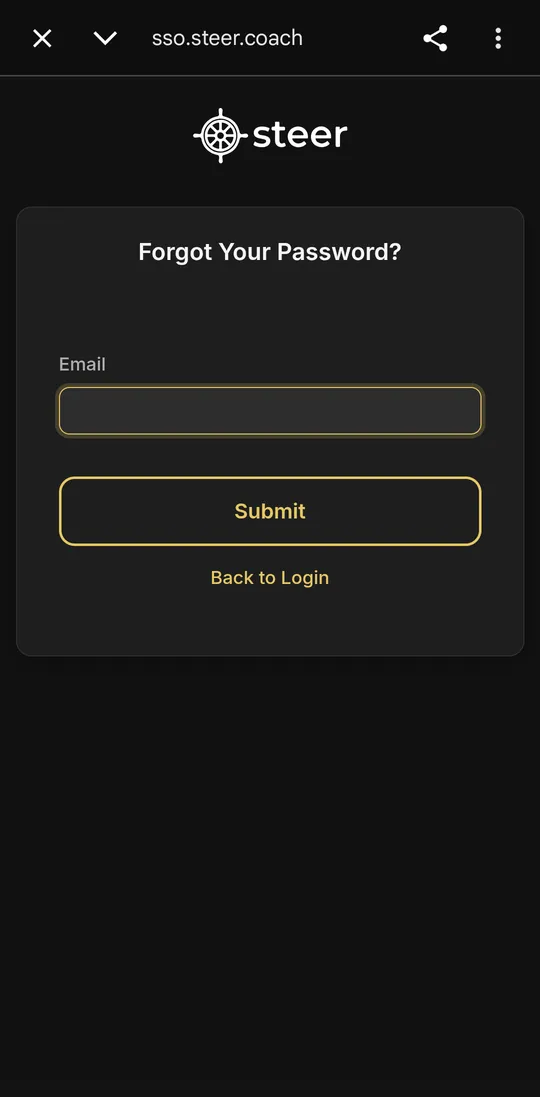
Forgot your password?
- Tap Sign In. Then tap Continue with email. Then tap Forgot Password?
- Type your email. Tap Submit.
- Open your email app. Find the email from Steer. Tap the link quickly. Make a new password.
- Go back to the app. Sign in with your new password.
Signed up with Google? You do not have a Steer password. Just tap Sign in with Google.
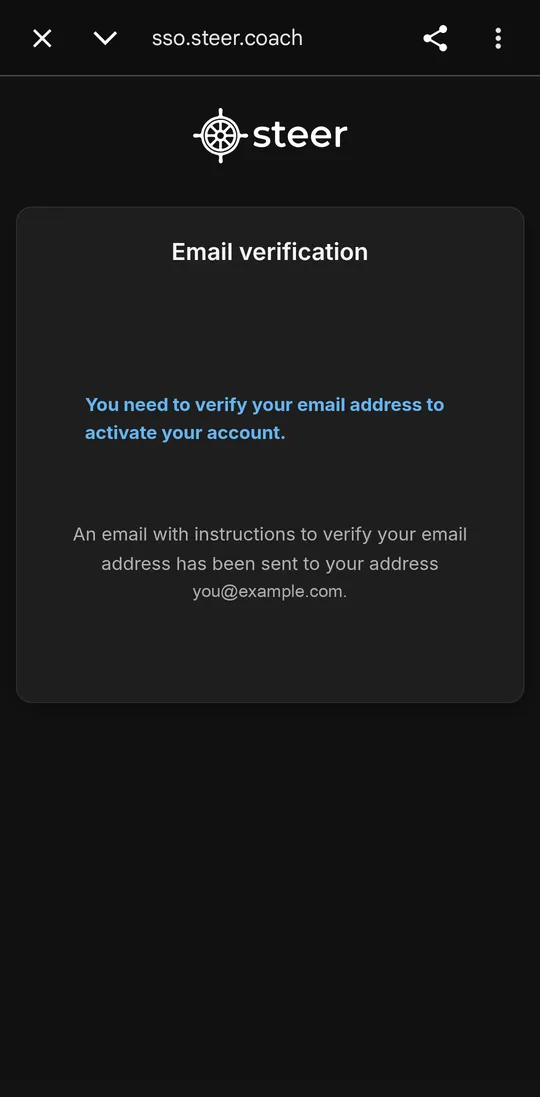
Do you see “You need to verify your email address”?
It means you made an account but did not check your email. Steer has just sent you a new email.
- Open your email app. Find the email Verify email from Steer. Look in Spam and Promotions too.
- Tap the blue link. Do it within 5 minutes. (Email not on this phone? Open it on a computer and click the link there. Then come back and sign in again.)
- The Steer app opens. If it asks for your details, fill them in. See how.
Problems?
It says “Invalid username or password”
Check that you are signing in the same way you signed up. Google users must tap Sign in with Google. Check your password. Tap the eye icon to see what you typed. Still not working? Reset your password.
I do not see my old charts
Maybe you used a different account before. Open the menu (☰). Tap Sign Out. Then sign in with your other Google account, or with email.
The page does not open, or it is blank
This page opens in the Chrome app. Check that Chrome is on your phone and turned on (Settings → Apps → Chrome). Update the Steer app from Google Play. Then try again.
I do not have an account yet
Make an account first. Choose Google or email.
Still need help? Email us at support@steer.coach. Tell us the email you used. Add a screenshot of your screen. You can also tap Need help? Contact us inside the app.